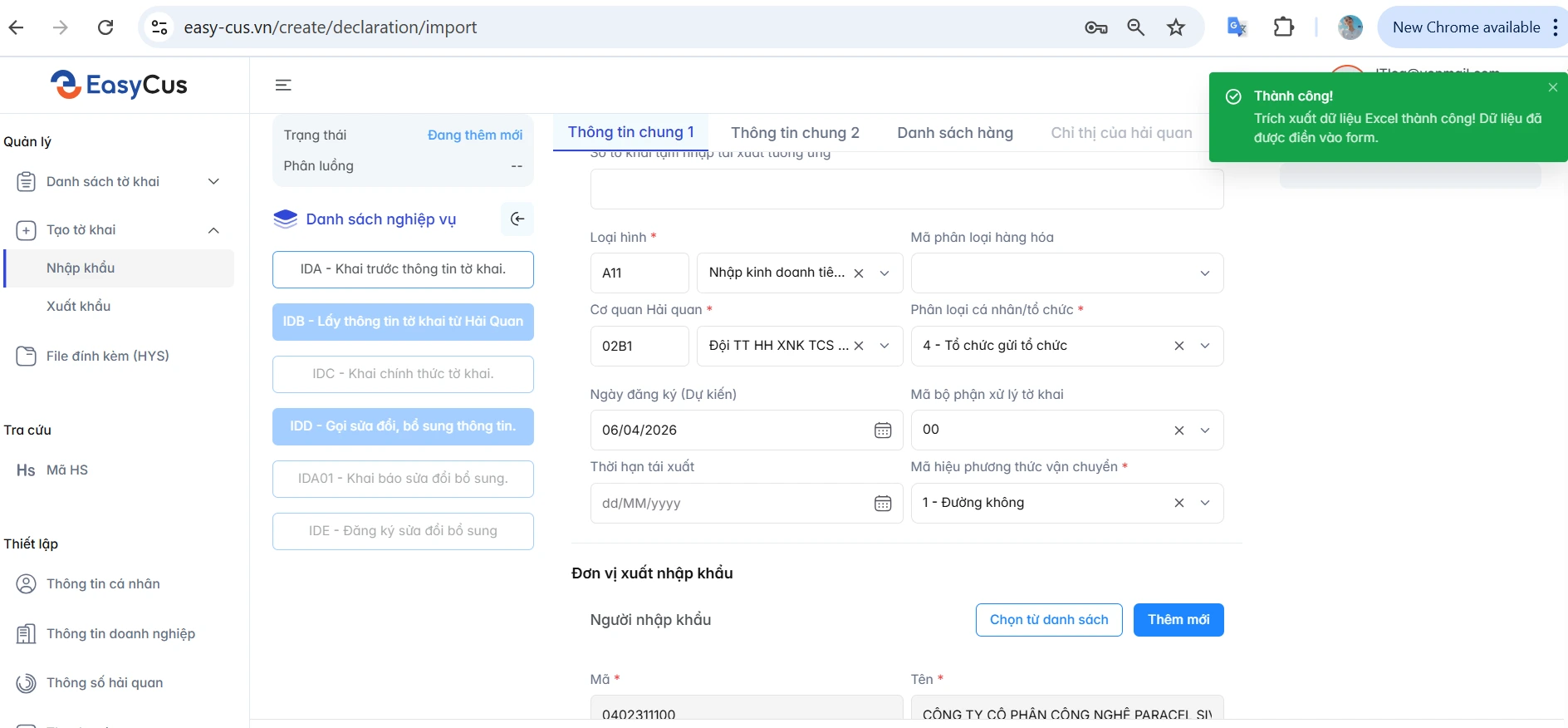
Customs declarations with AI, in just 7 steps
Write one or two paragraphs describing your product or services. To be successful your content needs to be useful to your readers.
Start with the customer – find out what they want and give it to them.

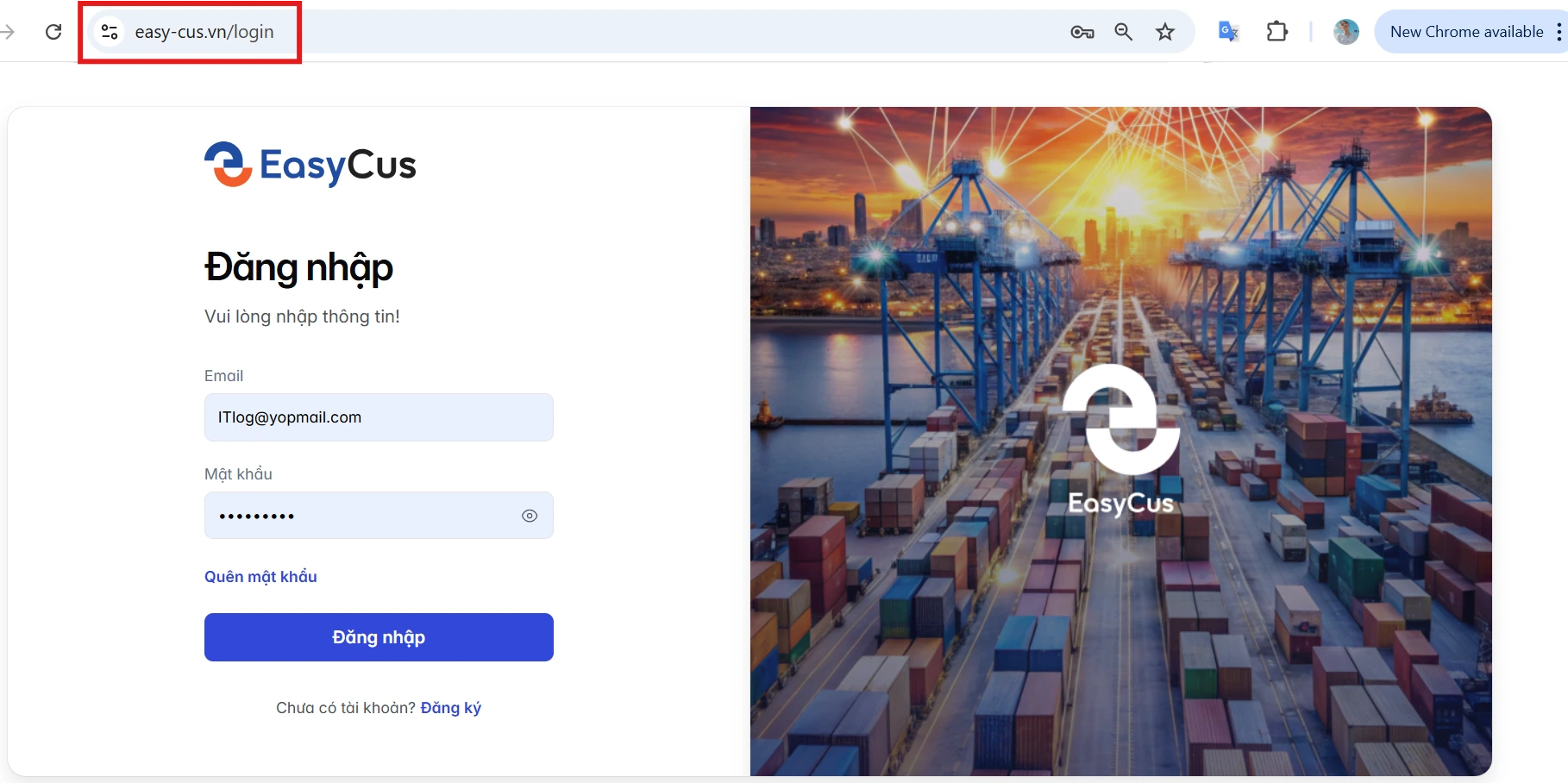
Sign up and log in to EasyCus
Write one or two paragraphs describing your product or services. To be successful your content needs to be useful to your readers.
Start with the customer – find out what they want and give it to them.
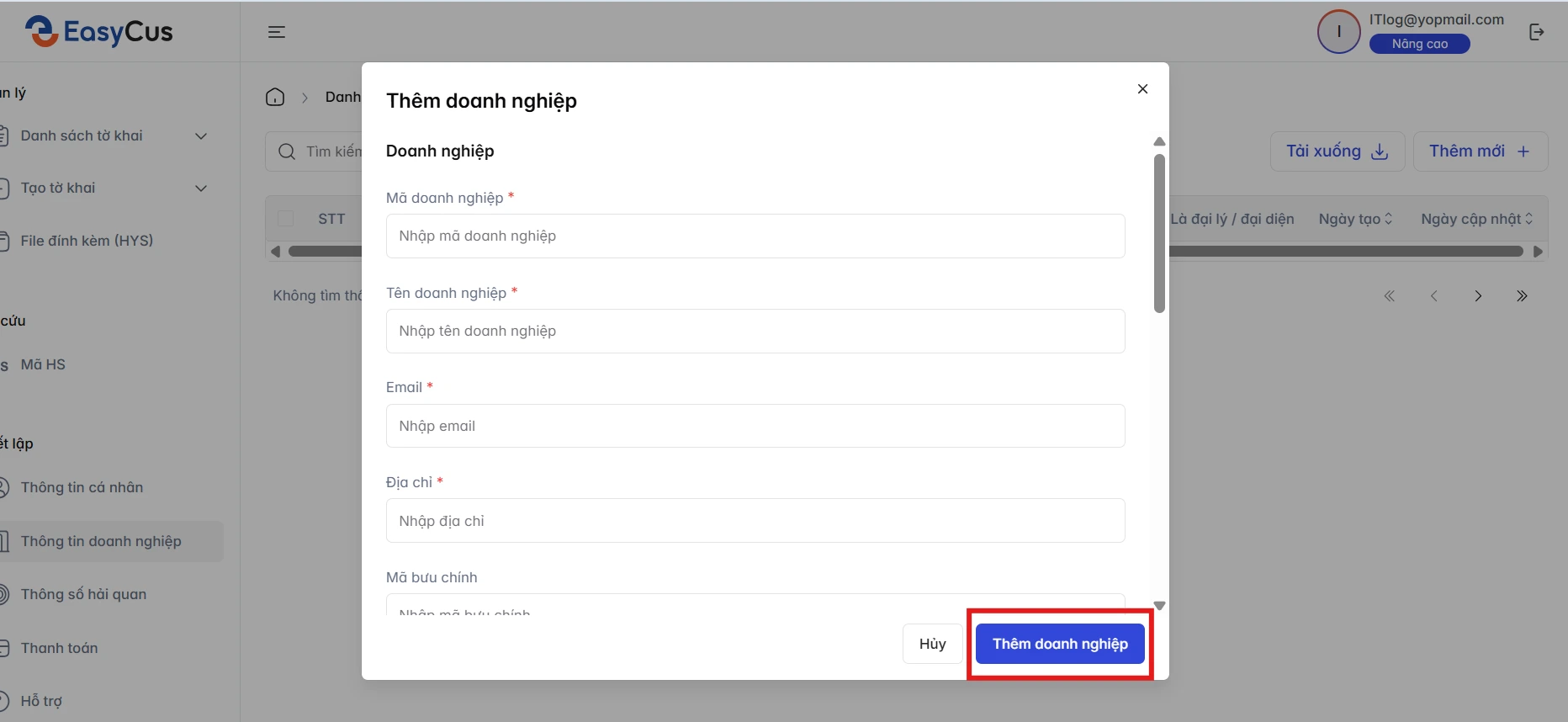
Set up your company information
Write one or two paragraphs describing your product or services. To be successful your content needs to be useful to your readers.
Start with the customer – find out what they want and give it to them.
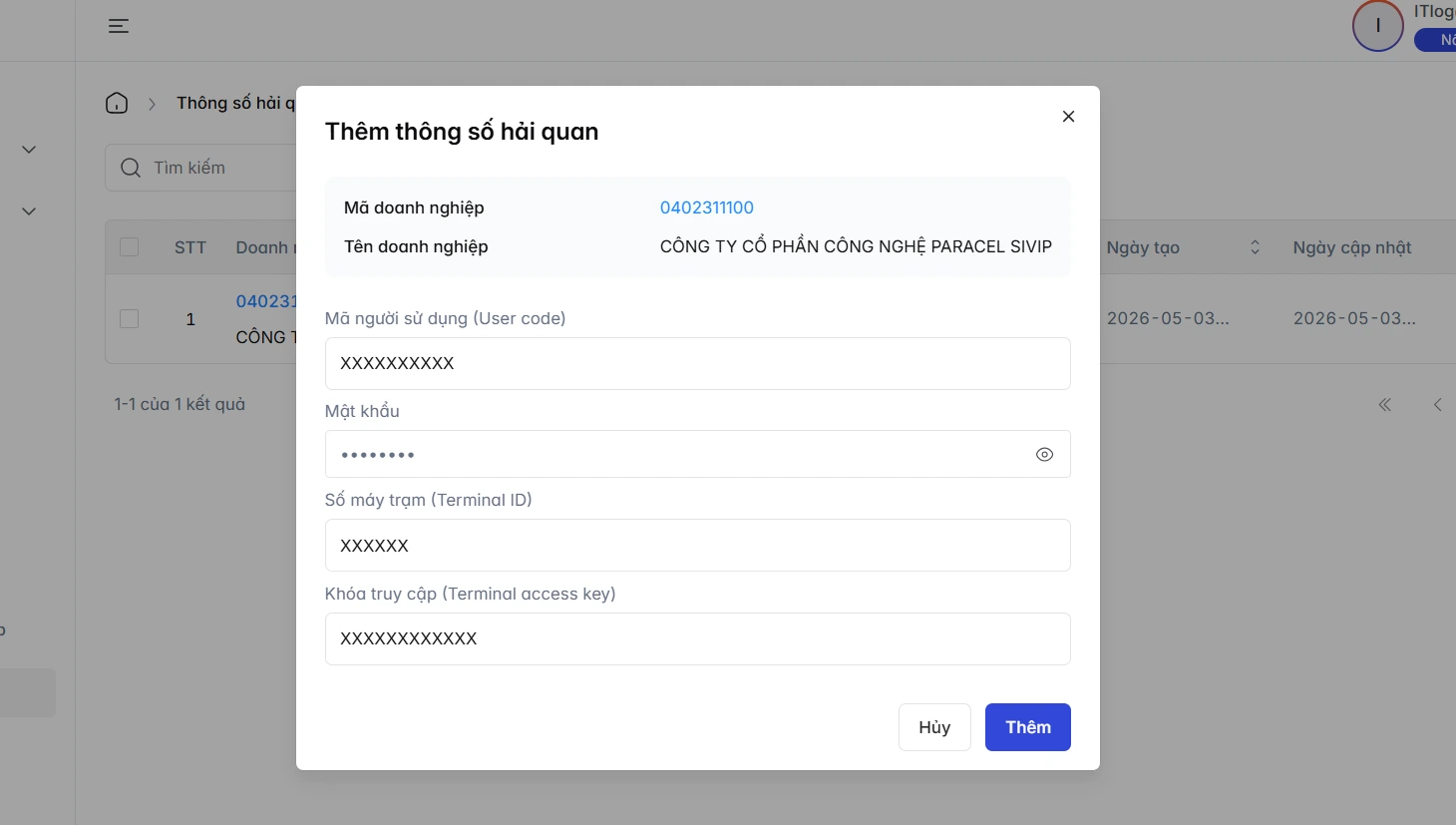
Configure customs parameters
Choose the company to configure and enter these three items:
This configuration is required to send and receive declaration data with VNACCS.
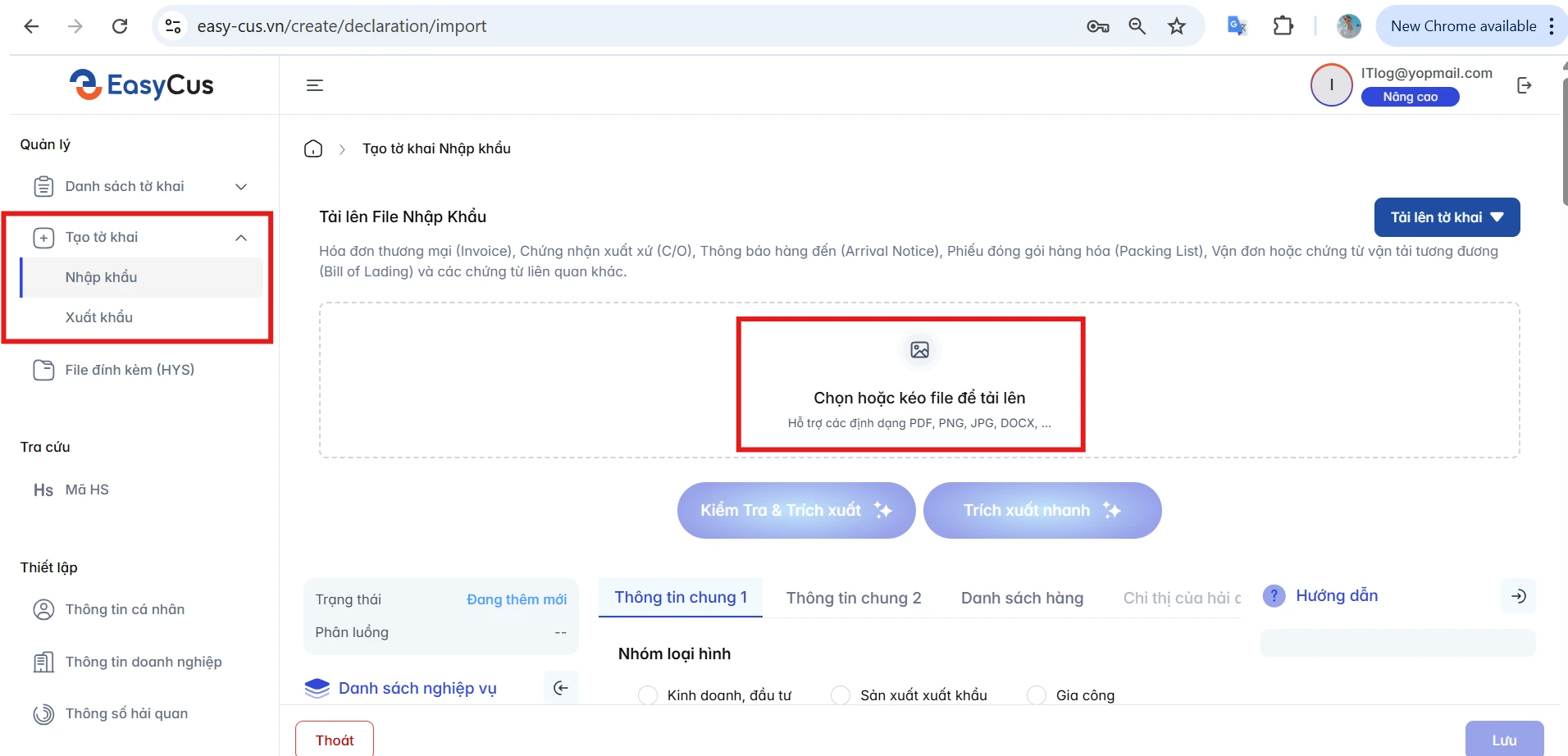
Upload documents for AI to process
Upload the document set for your shipment. EasyCus supports:
After uploading, choose one of two modes:
Review the data AI extracted
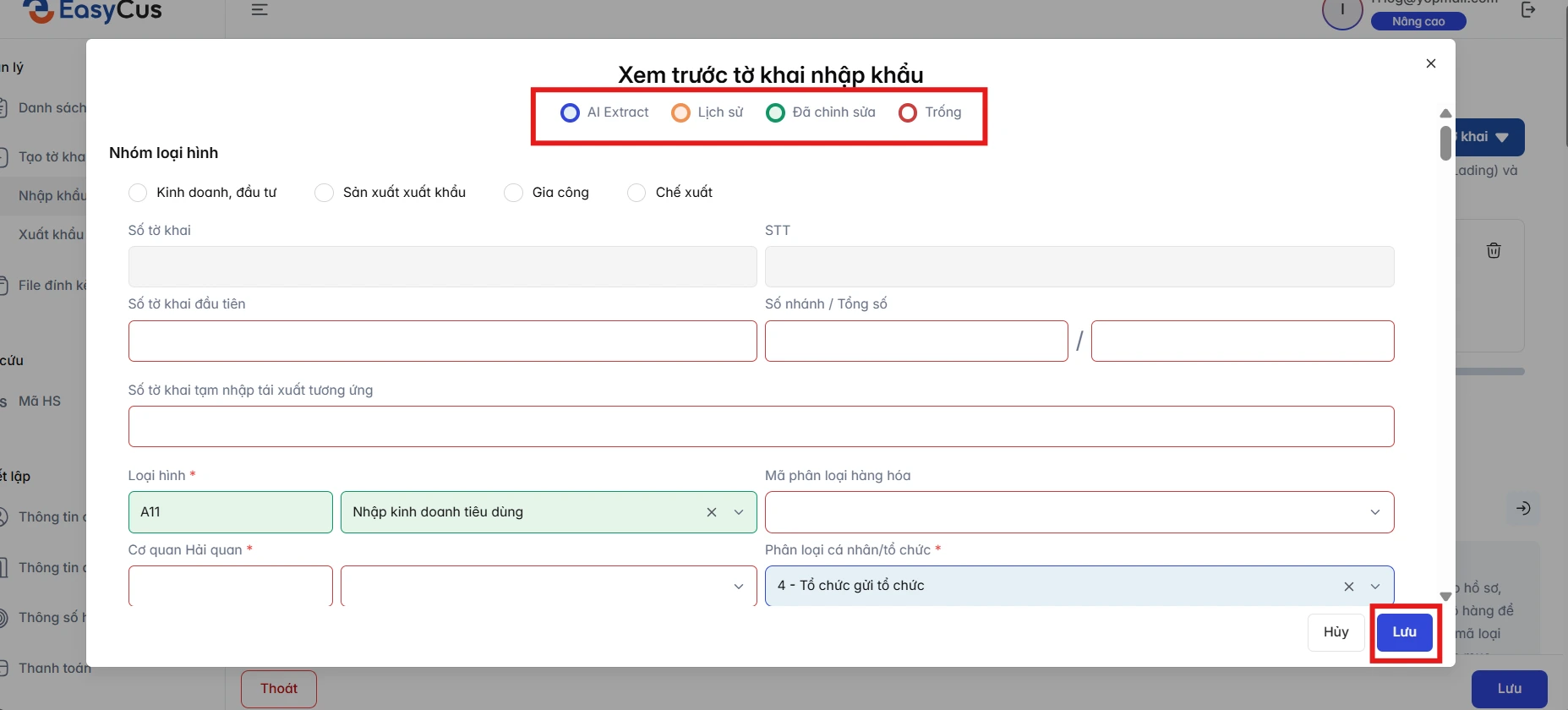
Once processing finishes, EasyCus shows the full declaration on a preview screen.
Review the extracted data, correct anything inaccurate and fill in the required fields, then select Save to create the declaration.
Look up HS codes with EasyCus AI
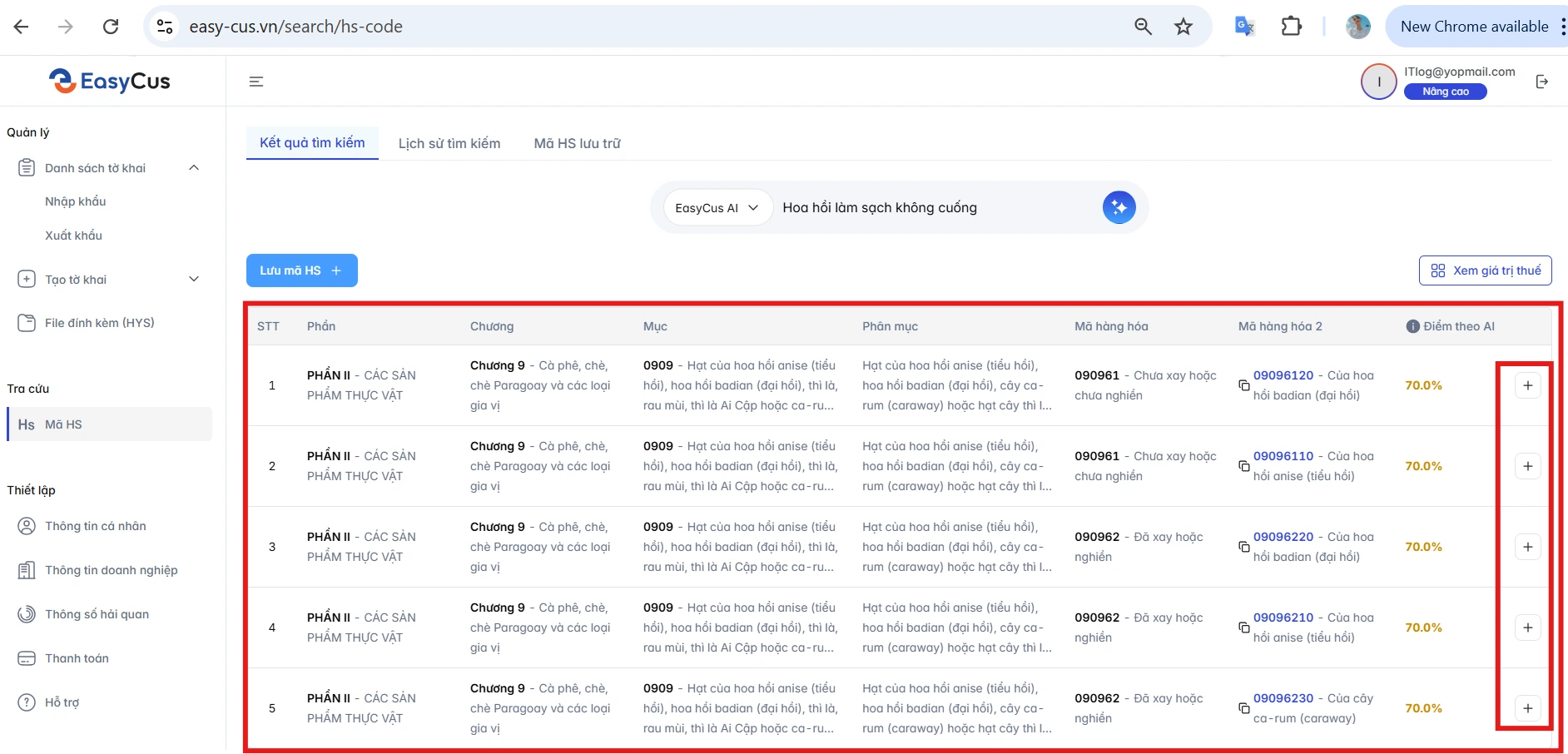
Enter the name or description of the goods, then pick one of two methods:
Tip: The more detailed your product description, the more information the AI has to suggest a suitable HS code. Always review and decide on the HS code yourself before declaring.
Create the declaration
EasyCus offers several ways to create a declaration.
For Excel, the system checks the file's structure and data format. If the file is valid, EasyCus automatically generates a draft declaration.